A photorealistic image of a building used to take a visualization studio several days and often a few hundred dollars per view. In 2026, an AI rendering tool can turn a SketchUp view, a Revit screenshot or a hand sketch into a client-ready image on an ordinary laptop, with no render engine to set up. For builders, design-build firms and small architecture practices, the strongest starting points are Vizbase for browser-based stills with control over each material, Veras for rendering inside Revit or SketchUp, and D5 Render when you need real-time walkthroughs.
Why construction teams are adopting AI rendering
Visuals win work. Homeowners and developers sign off faster when they can see the finished kitchen, facade or extension instead of reading a plan. Traditional rendering needs a render engine, a powerful graphics card and someone who knows how to light a scene. AI rendering tools skip most of that: you give them a view of your model or a sketch, describe the materials and the mood, and they return a photorealistic image.
Design professionals already report the benefit. In the 2026 AI in Architecture Report by Chaos and Architizer, 86% of architects and designers who use AI said it saves them at least some time. For contractors, the practical uses are bids, client approvals, planning submissions and marketing images of projects before they are built.
The 7 tools at a glance
| Tool | Works from | Best for | Free option | Paid from |
|---|---|---|---|---|
| Vizbase | Browser, SketchUp plugin, any CAD view or sketch | Client-ready stills with per-element materials | 5 credits (up to 10 renders) | €29/month |
| Veras (Chaos) | Plugin for Revit, SketchUp, Rhino, Archicad, Vectorworks, Forma | Rendering inside the BIM model | 15-day trial, 30 renders | $29/month, billed annually |
| D5 Render | Desktop app with live sync to SketchUp, Revit, Rhino | Walkthroughs and animations | Community version (non-commercial) | $38/month or $360/year |
| Twinmotion | Desktop app (Epic Games) | Site context and landscaping | Free under $1M annual revenue | $445/year per seat |
| SketchUp AI Render | Inside SketchUp | Quick concept looks while modeling | Not on SketchUp Free | Credits included with paid SketchUp plans |
| mnml.ai | Browser upload | Style exploration at volume | Free credits on signup | Subscription |
| MyArchitectAI | Browser upload | First renders with no setup | 10 free renders | Subscription |
1. Vizbase
Vizbase is a browser-based AI rendering tool for architects, interior designers and design-build teams, built by a small team in Riga, Latvia. You upload a view from SketchUp, Revit, Rhino or Blender, or a hand sketch, and it returns a photorealistic render without a GPU or render engine. SketchUp users can skip the export step with Vizbase’s SketchUp plugin, which works on every plan, including the free one, and sends the current view straight to Vizbase.
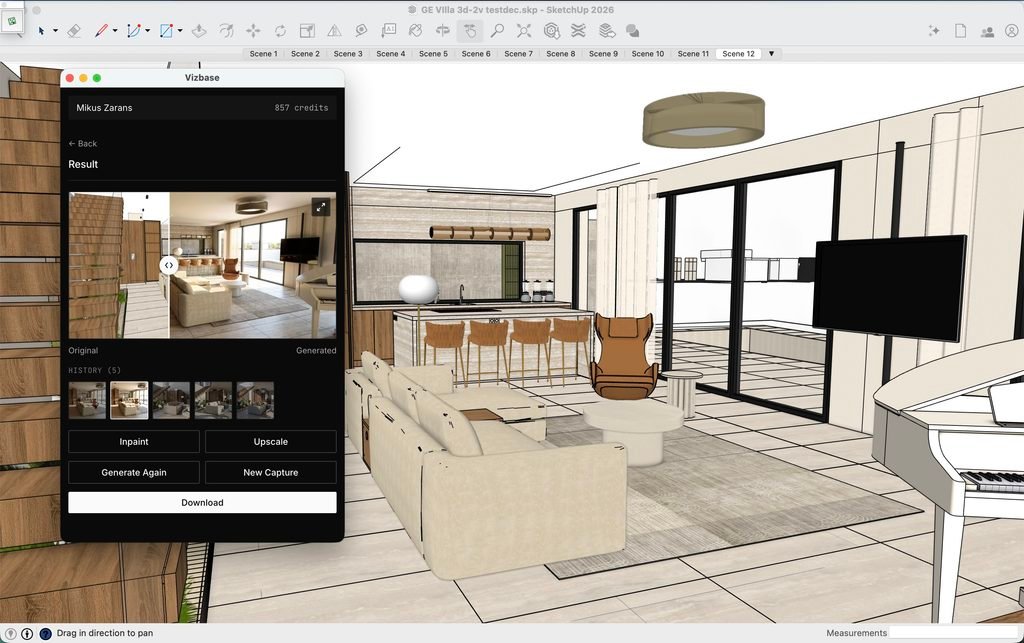
What sets it apart is element-level control. Vizbase detects the walls, floors, cabinets and fixtures in your image, and you set the material for each one, such as a brushed concrete floor, white oak cabinets or black steel window frames, in plain language, from a reference photo or from a library of more than 2,000 materials. That makes it practical for showing a client three finish options for the same kitchen or facade. With Refine you mark an area of a finished render and describe the change, and paid plans export at up to 8K for print.
In practice: on a renovation project in Riga by designer Alise Jēkabsone, the finishes were set element by element, from the herringbone floor to the bouclé armchair, and the SketchUp view was rendered in Vizbase’s Gen 4.0 mode. The first pass left out the ornate ceiling rose that was in the model; a Refine pass on the ceiling, with a reference image of the rose, put it back. That is a fair picture of the tool: strong on materials, with the odd detail that needs a second pass.
Pricing: free to try with 5 credits (up to 10 renders, no card). Starter costs €29 a month, Pro €59 and Studio €109, and annual billing brings Starter down to €25 a month. Every plan includes full commercial rights to your renders.
Best for: client-ready stills where the materials have to match the spec.
Limitation: Revit and Rhino plugins are coming soon, so those users upload a screenshot for now.
2. Veras (Chaos)
Veras is an AI rendering plugin from Chaos, the company behind V-Ray and Enscape. It runs inside Revit, SketchUp, Rhino, Archicad, Vectorworks and Autodesk Forma, and uses your model’s geometry as the base for each image, which keeps massing and openings close to the design. You steer the look with text prompts and sliders, and Selection Render lets you re-prompt one part of the image.
Pricing: from $29 a month billed annually, or $59 month-to-month, with a 15-day trial that includes 30 renders.
Best for: teams that want AI rendering without leaving their BIM model.
Limitation: it runs inside your design software, so each user needs a supported host app and a Veras license.
3. D5 Render
D5 Render is a real-time renderer with live-sync plugins for SketchUp, Revit, Rhino and other design tools, and it includes AI-assisted features. Unlike upload-based AI tools, it renders your actual 3D scene, so you can produce walkthrough videos and panoramas as well as stills.
Pricing: a free Community version for non-commercial use; D5 Pro costs $38 a month or $360 a year.
Best for: animations, walkthroughs and large site scenes.
Limitation: it needs a capable graphics card and time to learn scene setup, and client work requires the Pro license.
4. Twinmotion
Twinmotion, from Epic Games, is a real-time visualization tool built on Unreal Engine, with a large library of trees, people and vehicles that suits site context and landscaping shots. It imports from SketchUp, Revit, Rhino and Archicad.
Pricing: free for students, educators and companies with under $1 million in annual revenue; $445 per seat per year above that.
Best for: exterior scenes with landscaping and surroundings.
Limitation: it is a traditional real-time renderer, so you still set up materials and lighting yourself.
5. SketchUp AI Render
AI Render, formerly SketchUp Diffusion, is Trimble’s own AI renderer inside SketchUp and part of the SketchUp AI toolset. It turns the current view into a styled image from presets and a text prompt, and it can edit selected areas and materials, all without an export step.
Pricing: uses the AI credits included with paid SketchUp plans (Go, Pro and Studio); more credits come with the SketchUp AI add-on.
Best for: quick concept looks while you model.
Limitation: it works only inside SketchUp and draws on a monthly credit allowance.
6. mnml.ai
mnml.ai is one of the largest AI rendering platforms, reporting more than 2.5 million registered architects and designers. It offers exterior, interior and sketch-to-render modes, a wide range of styles, and masked editing: select a region, describe the change, apply.
Pricing: free credits on signup with no card, then subscription plans.
Best for: fast style exploration across many options.
Limitation: there are no CAD plugins, so every view is exported and uploaded as an image.
7. MyArchitectAI
MyArchitectAI keeps the workflow simple: upload an image, pick a style, get a render. Its Render Editor lets you select an area of a render and change it, and the free allowance of 10 renders makes it easy to test.
Pricing: 10 free renders, then paid plans.
Best for: beginners who want a first render with no setup.
Limitation: it works from uploaded images for now; a SketchUp plugin is announced as coming soon.
How to choose
- If your model lives in Revit and you rarely leave it, start with Veras.
- If you need to show clients specific finishes, pick a tool with element-level control, such as Vizbase.
- If you need walkthroughs or animations, use a real-time renderer such as D5 Render or Twinmotion, and plan for a graphics card.
- If you only need early concept images, SketchUp’s AI Render and mnml.ai are quick to try.
FAQ
Can AI renders replace a visualization studio?
For bids, early approvals and design options, often yes. Hero marketing images for large developments still tend to go to specialists, who increasingly use AI tools themselves.
Do I need a powerful computer?
Not for browser-based tools such as Vizbase, mnml.ai and MyArchitectAI, because the rendering happens in the cloud. Real-time renderers such as D5 Render and Twinmotion need a dedicated graphics card.
Can I use AI renders commercially?
Check each tool’s terms. Vizbase, for example, grants full commercial rights on every plan, including the free one, while D5’s free Community version is for non-commercial use only.